Assigning a Layout
 On the Layout Tab
-
Choose the page on which you want to assign layouts to the grids.
-
Go to the Layout tab.
-
If necessary, search for suitable layouts (see Searching for a Layout):
-
Drag a suitable layout onto a grid using drag and drop.
The Layout tab displays the suitable layouts.
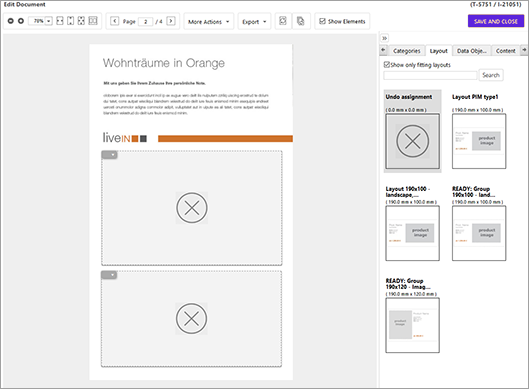
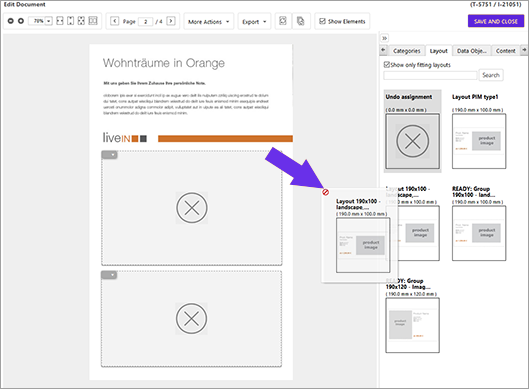
This moves a placeholder image. A red "prohibited" sign is displayed until you have placed the cursor on a grid:
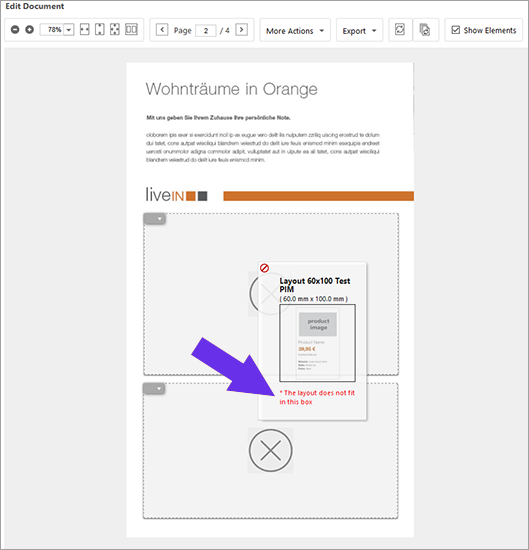
If the layout does not fit into the grid on which you place the cursor, this is also displayed with a warning:
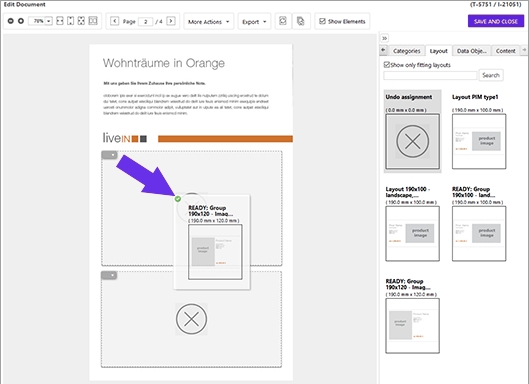
Once you place the cursor on a suitable grid and can release the button, a green checkmark is displayed:
You have assigned a layout to the grid. The layout is displayed in the grid.
Note
To assign a layout to all the empty grids simultaneously, double-click a layout.
On the Content Tab
-
Select the page on which you want to assign layouts to grids.
-
Switch to the Content tab.
-
On the Content tab, select the variable of the Smart Grid, see Texts and Images.
-
In the Layout area, click the pencil icon.
-
If necessary, search for suitable layouts, see Searching for a Layout.
-
Click on the appropriate layout to select it.
-
Click Select Layout.
A dialog is opened that displays suitable layouts.
You have assigned a layout to the grid. The layout is displayed in the grid.